AI
How to Create AI Animations for Your Website and Social Media
Animate infographics with AI (with examples)

Sergey
February 23, 2026
If you want to create lightweight animated infographics for your website or social feeds, Gemini offers a fantastic tool for this: SVG animation.
This is an absolutely perfect hack for visualizing simple data or flowcharts to keep your audience engaged.
Here is an example of what we can create together.
1. Generate a Static Illustration First, you need a base image. Tools like Nano Banana or ChatGPT are perfect for this. The key is to clearly define the core concept (the specific numbers or stats you want to show) and your brand color palette.

Pro-tip: Do not overcomplicate the prompt with too many details—the AI might break and spit out nonsense. It is also crucial that the illustration is in a clean 2D style. Avoid complex 3D elements, heavy gradients, or photorealistic people.
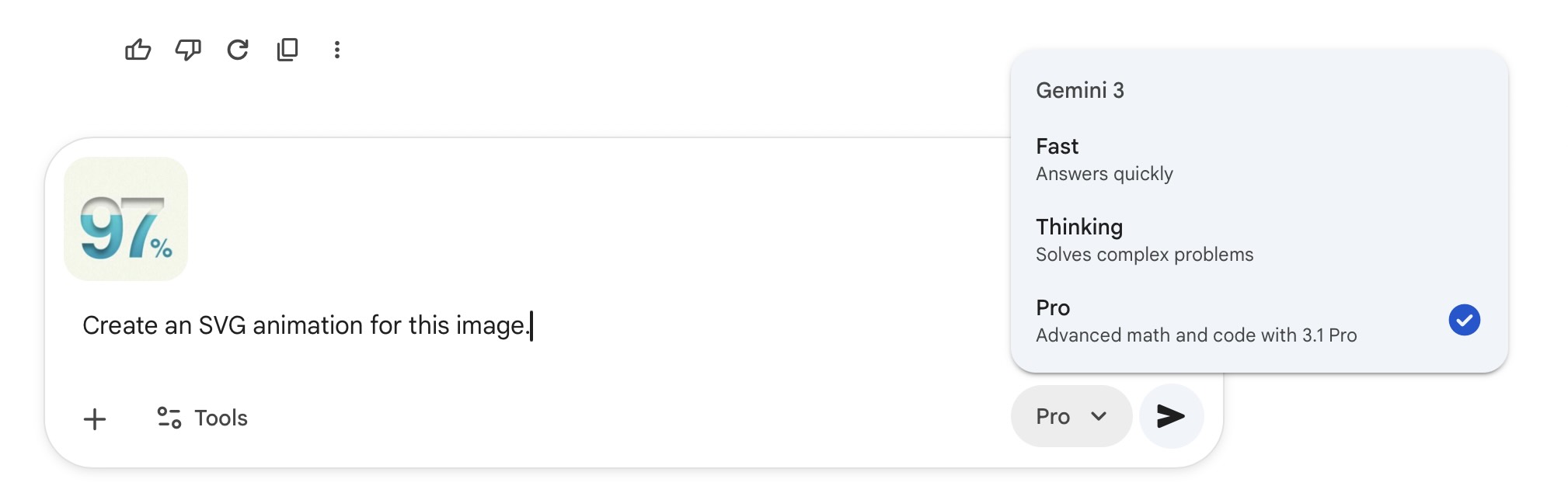
2. Animate with Gemini Next, head over to Gemini, make sure you are in "Pro" mode, upload your illustration, and drop in this exact prompt: "Create an SVG animation for this image."
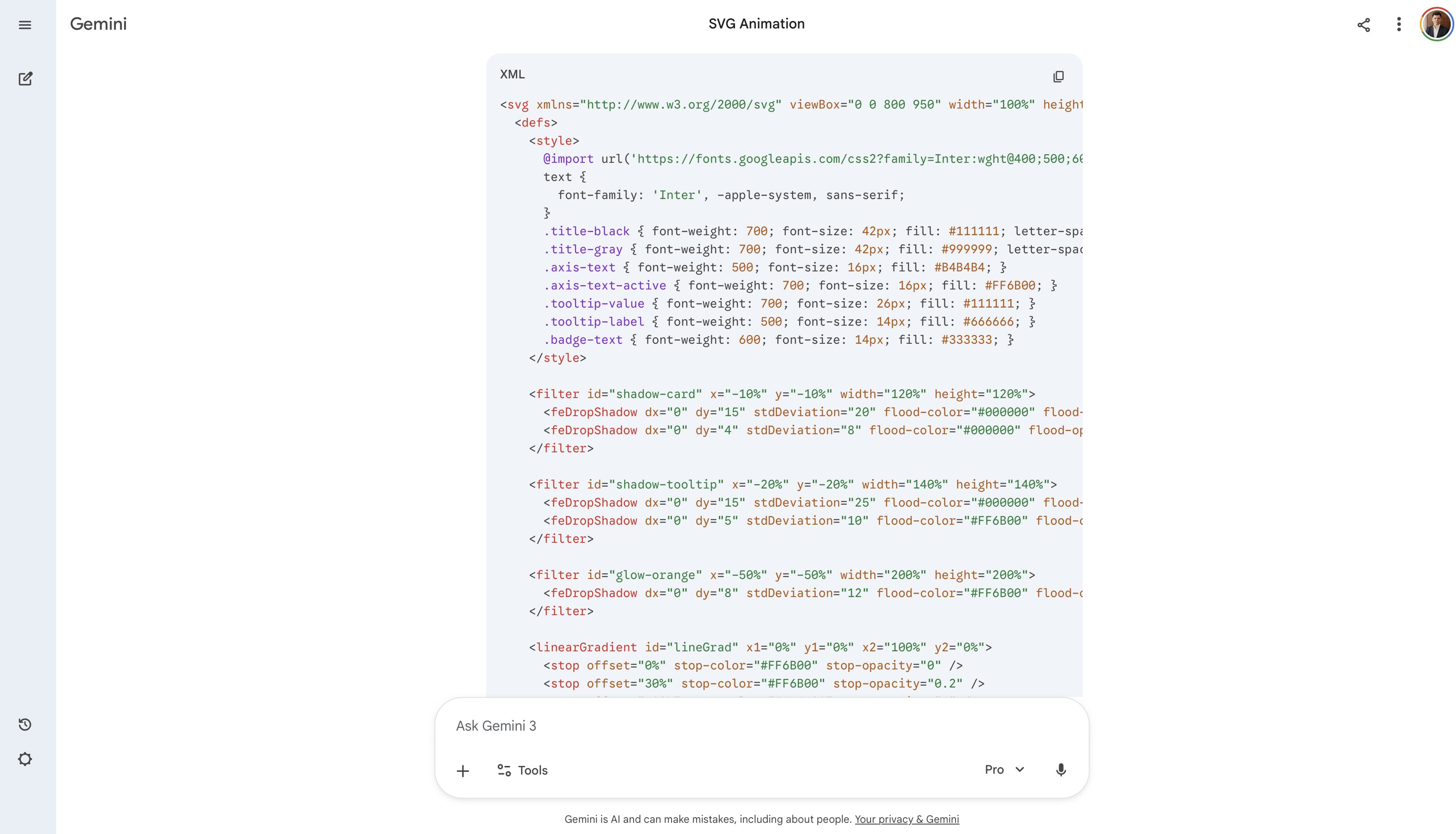
3. Visualize the Code Gemini will generate the raw code for you.
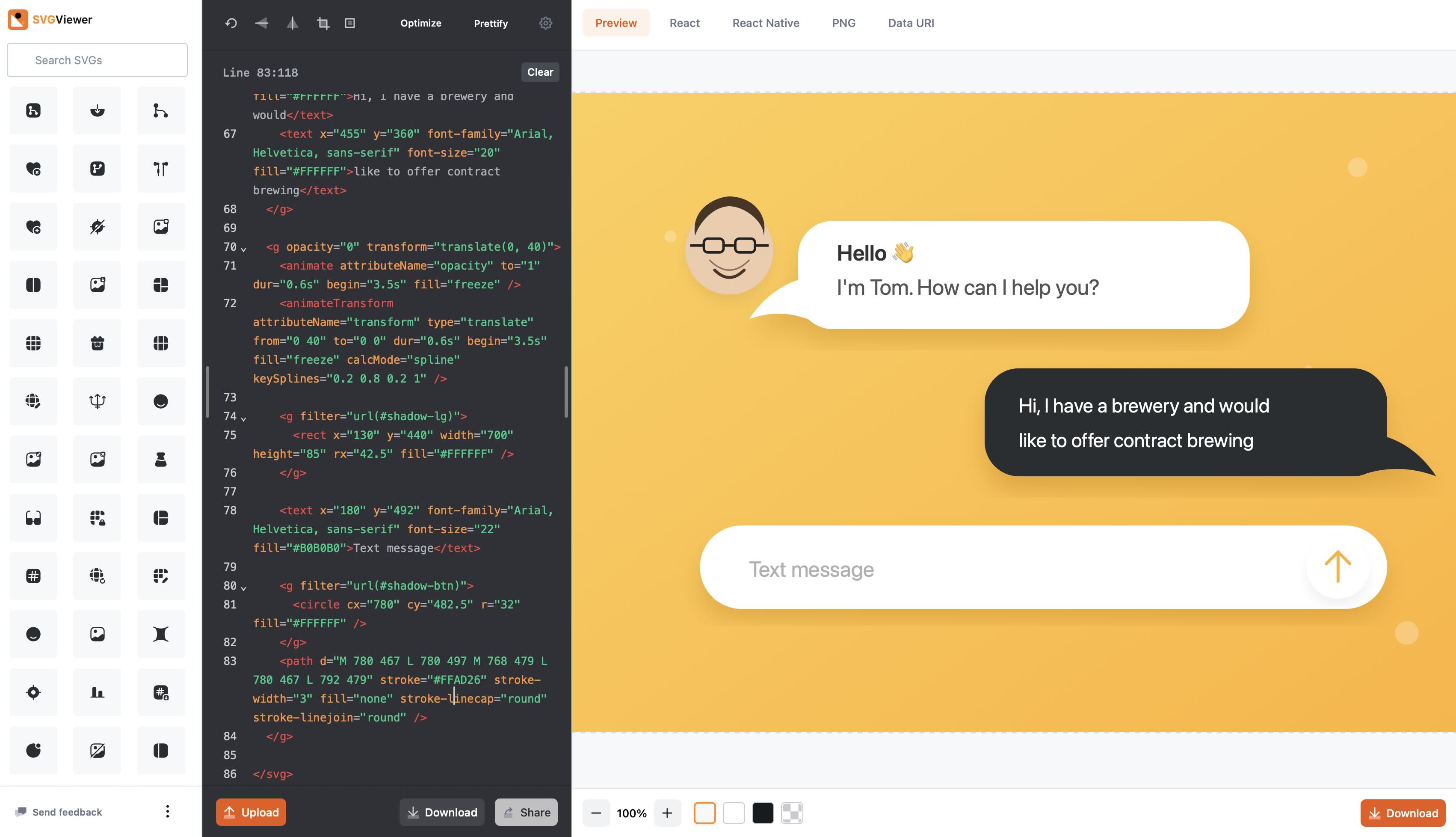
Copy it, open an SVG visualizer like svgviewer.dev, and paste the code into the text panel. You will instantly see your animation playing on the right side of the screen.
4. How to Debug If there are any glitches, you can simply go back to Gemini and ask it to fix the error. For example, in one of my animations, the text was overlapping. I told the AI to fix the spacing, and it worked perfectly.
However, sometimes it is actually faster to just start a fresh chat, re-upload the image, and try again. I had an issue where the AI refused to add color to a progress bar. I started a new chat, repeated the prompt, and it nailed it on the first try.
5. Make It Loop for Your Website If you are embedding this on your website, you will want a looped animation. Just take your working code and ask the AI to make the animation loop with a 3-second pause. It will update the code for you, and you can drop this final version directly into your site builder.
I think this is a brilliant workflow for social media content. It is a great way to visualize a data-heavy post on LinkedIn or create an engaging, swipeable carousel for Threads.
Here are a couple of examples of animations made exactly this way:
If you need to produce more complex, high-end AI content, reach out to our team at Lava Media. And be sure to follow us on LinkedIn for more video marketing insights!